Newsletter
CG-MLB Software Setup Guide: How to Download, Install, Register, and Reset Your Password
Matched product:
New Arrivals CGDI CG-MLB Programmer Supports Key Adding, Key Data Reading, Key Generating, OBD Learning for MLB/MQB48
Latest price:€199.00€152.0024% off
- Item No. HKSK507
- Free Shipping
CGDI CG-MLB Programmer Supports Key Adding, Key Data Reading, Key Generating, OBD Learning for MLB/MQB48
This comprehensive guide walks you through everything you need to get your CG MLB tool up and running — including software download, step-by-step installation, account registration, and password recovery.
Overview & Supported Vehicle Functions
CG-MLB is a dedicated key programming tool built for advanced VAG (Volkswagen Auto Group) immobilizer platforms.
Key Features & Capabilities:
MLB-EVO Key Programming – Supports key data reading and key addition for Porsche, Bentley, Audi, Volkswagen, and Lamborghini MLB-EVO immobilizer systems.
Dealer Key Generation – Generates dealer-level keys for Porsche, Bentley, Audi, VW, and Lamborghini models.
OBD Key Learning – Enables direct key learning through the OBD diagnostic port.
Key ID Modification – Allows modification and writing of vehicle key IDs.
MQB48 Support (Coming Soon) – Future updates will enable key reading and adding for VW, Audi, and Skoda MQB48 platform systems.
Step 1: Free Download CG MLB Software (V1.3.1.0)
Be sure to download the official software build to access the latest vehicle database, firmware updates, and online calculation protocols.
Software Version: 3.1.0 (Build 260727)
Download Link: Download CG-MLB Software V1.3.1.0
Supported Languages: English, French, Simplified Chinese
Step 2: Software Installation Setup
Follow these simple steps to install the software on your Windows PC:
Locate and extract the downloaded ZIP archive file.
Double-click the installer setup file: CG-MLB_Setup_V1.3.1.0 Build 260727.exe.
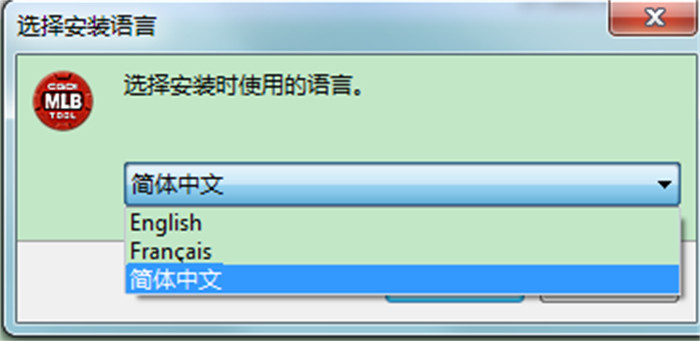
Choose your preferred language (English, French, or Simplified Chinese) and click OK.
Select the destination folder on your hard drive where you want the software installed.
Select any additional tasks (such as creating a desktop shortcut) and click Next.
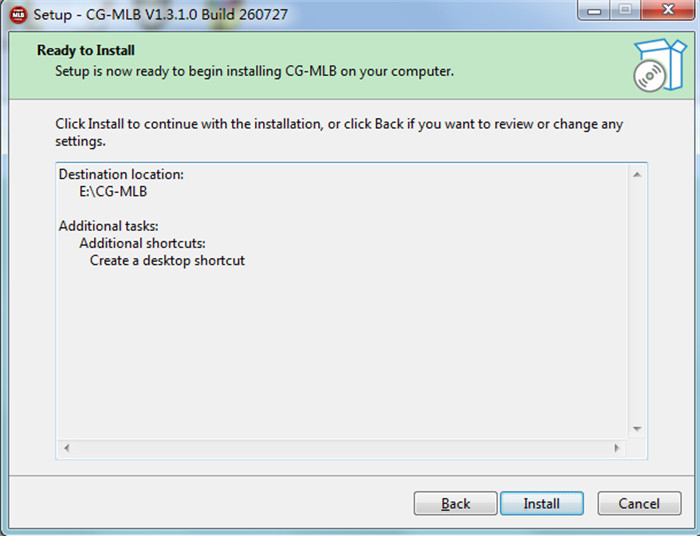
Click Install and wait for the progress bar to complete.
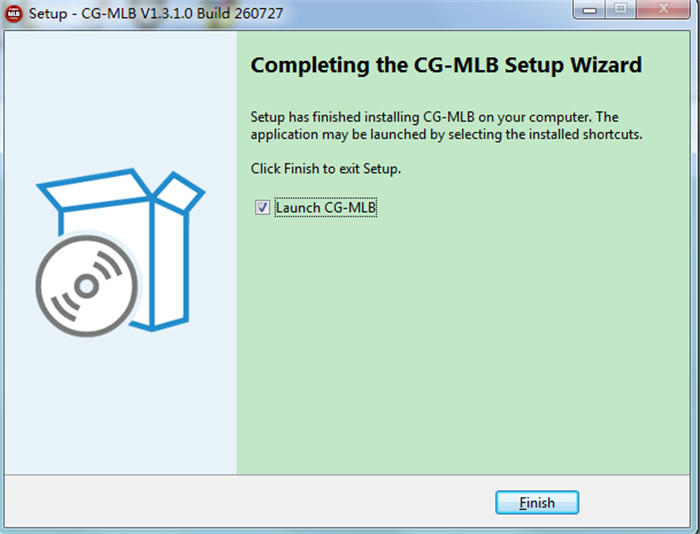
Click Finish to finalize the installation.
Step 3: Register a New CGDI Account
An active account is required to connect to CGDI online servers for key calculations and token redemptions.
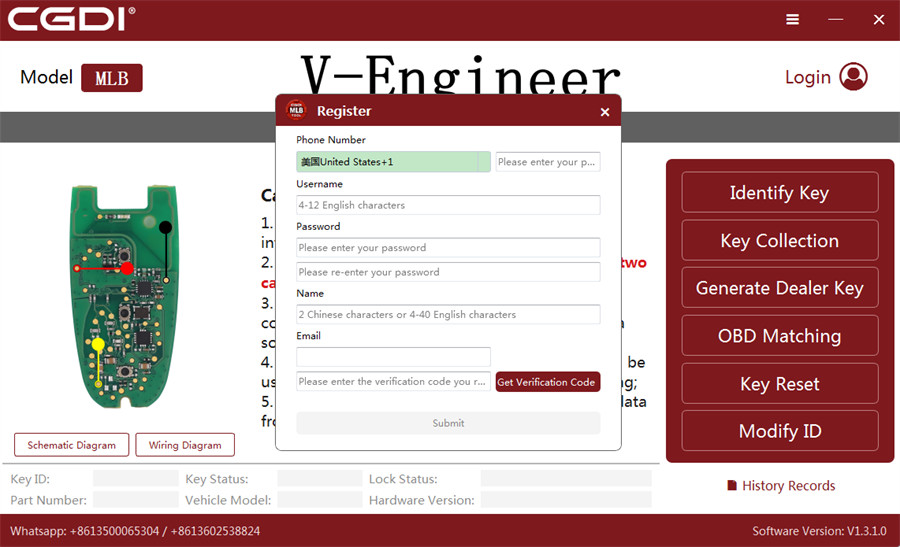
Launch the CG-MLB software on your desktop.
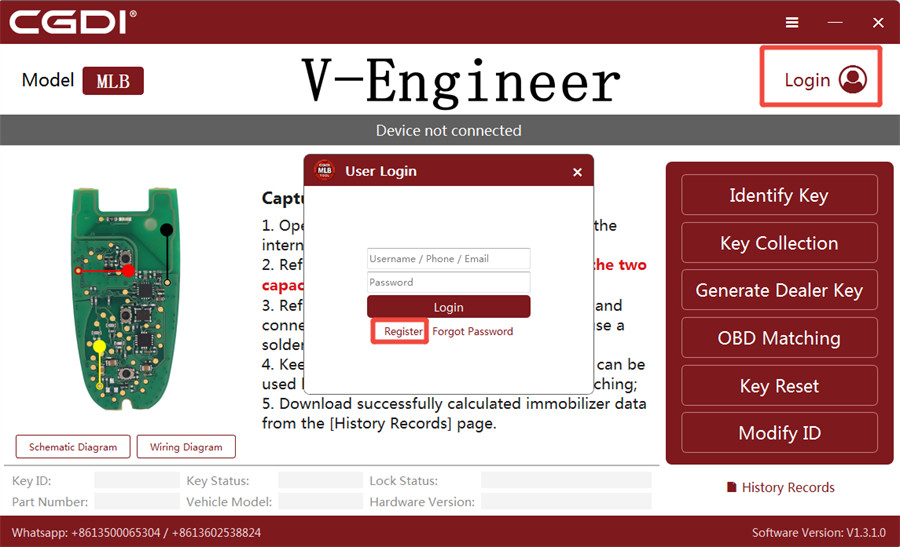
Click Login in the top-right corner of the software interface.
Click Register to create a new user account.
Fill in the required information:
- Phone Number
- Username
- Password & Password Confirmation
- Full Name
- Email Address
Enter the security code received via SMS or email, then click Submit to activate your account.
Step 4: Login & Password Reset Instructions
How to Log In
Once registered, log into the CG-MLB desktop application by entering your Username / Phone / Email along with your Password.
How to Reset a Forgotten Password
If you forget your login password, you can quickly reset it directly within the application:
Click Forgot Password on the login screen.
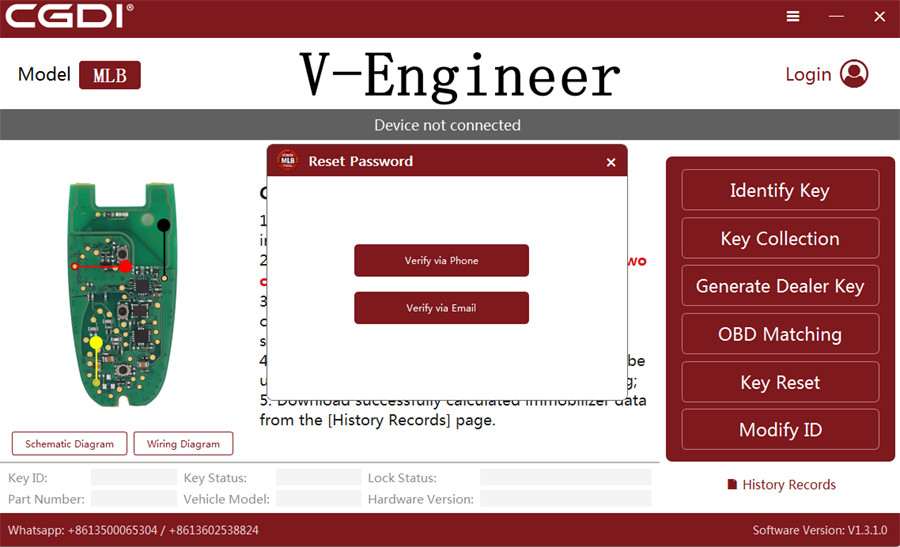
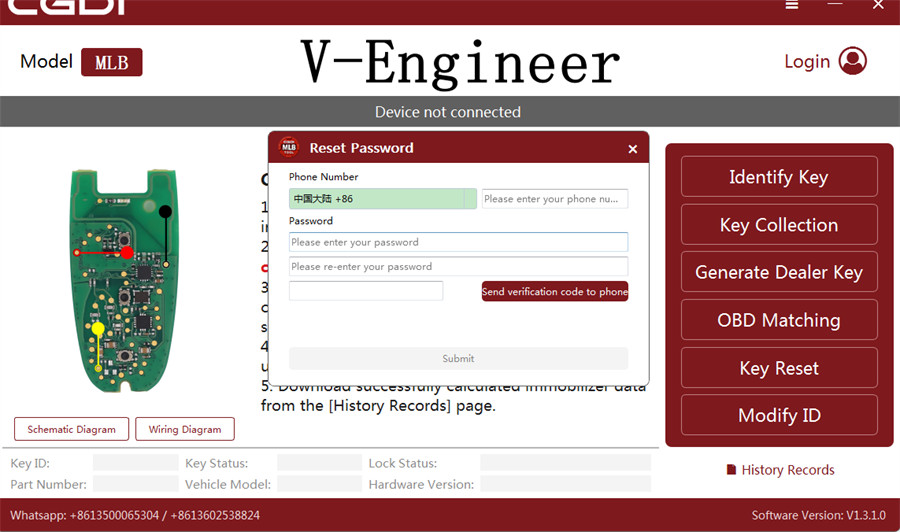
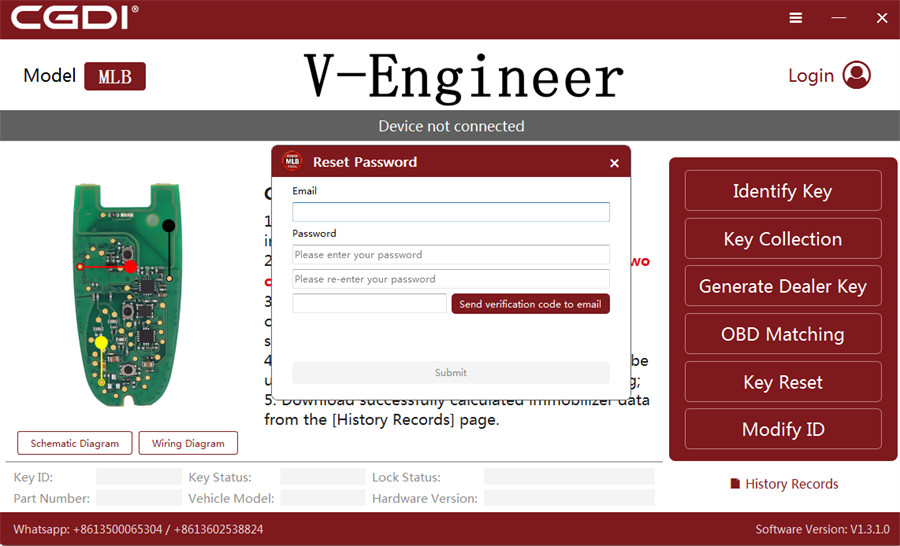
Choose your verification method: Verify via Phone or Verify via Email.
Enter your registered phone number or email address, along with your New Password.
Click Send verification code to receive it via your chosen method.
Enter the verification code and click Submit.
Your password will be updated immediately, allowing you to log back in.