Newsletter
How to Read and Write FBS4 DSM/DSM222 with CGDI MB?
Want to know how to use CGDI Prog MB to read and write Mercedes-Benz FBS4 DSM/DSM222?
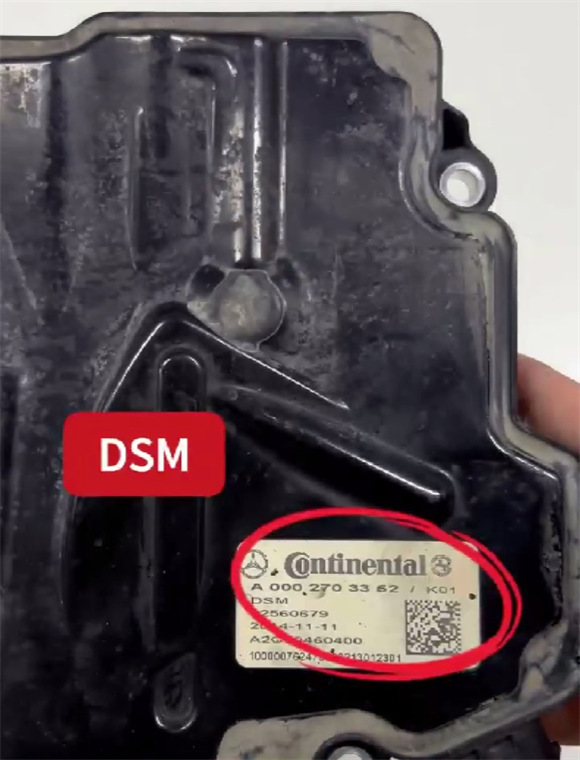
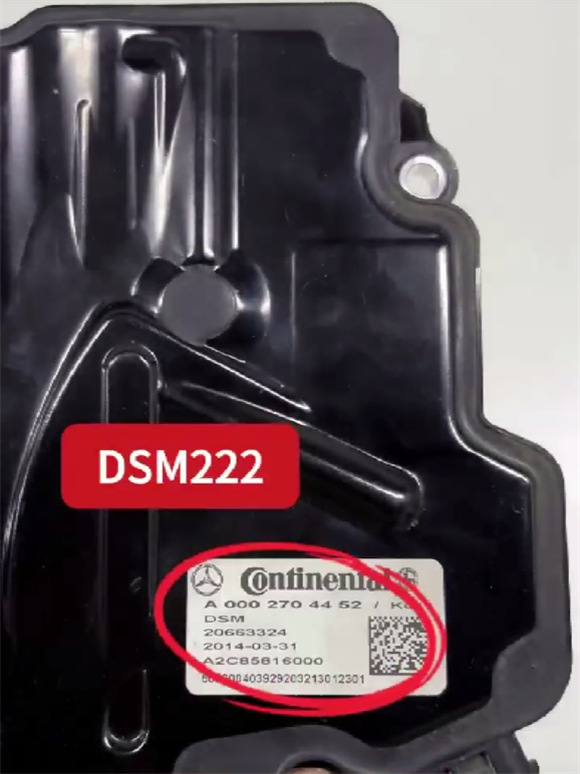
Check out the detailed operation guide below.
Requirements
Update the CGDI MB software to V3.4.1.0 or later.
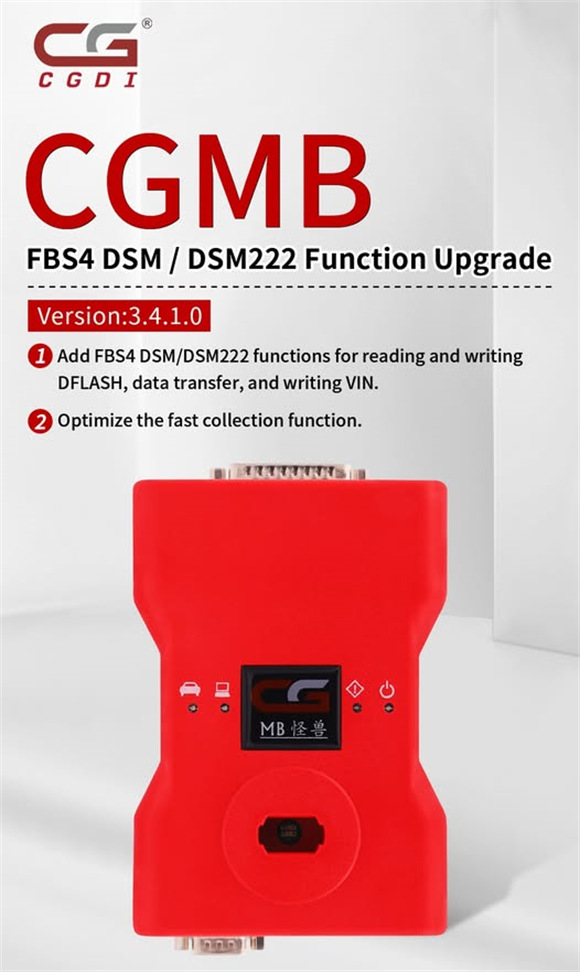
The latest version adds the following FBS4 DSM/DSM222 functions:
Read and write DFLASH
Data transfer
Write VIN
Optimized fast data collection
Operation Guide
Example: FBS4 DSM
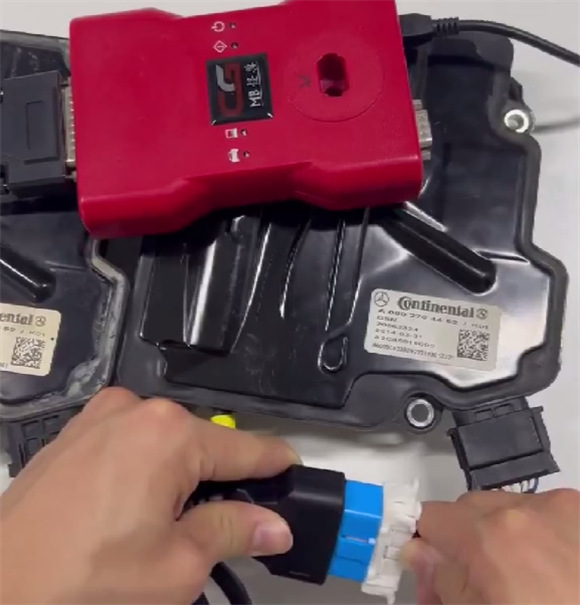
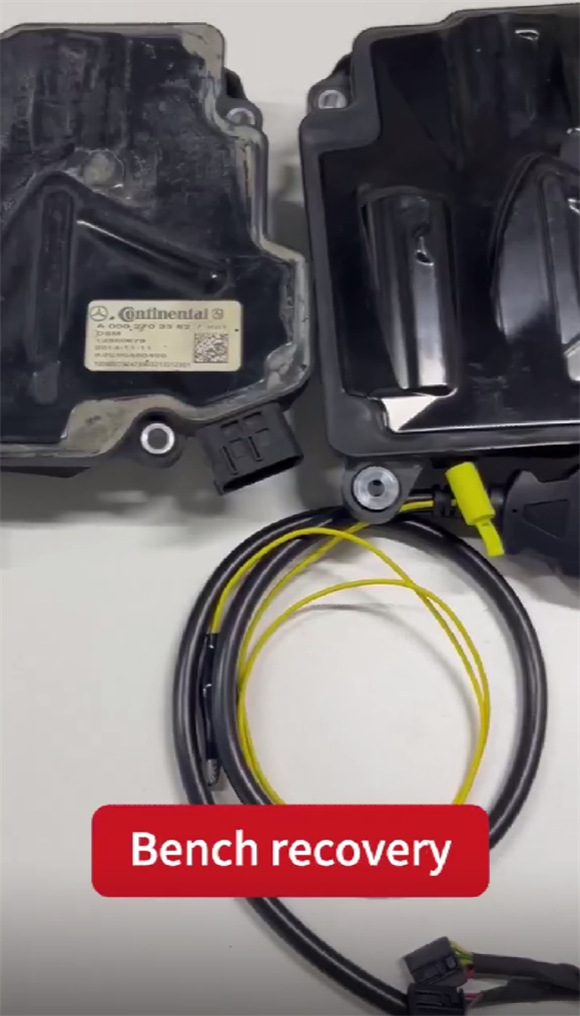
Properly connect the CGDI Prog MB key programmer to the Mercedes-Benz FBS4 DSM.
Connect the CGDI MB to a PC via a USB cable.
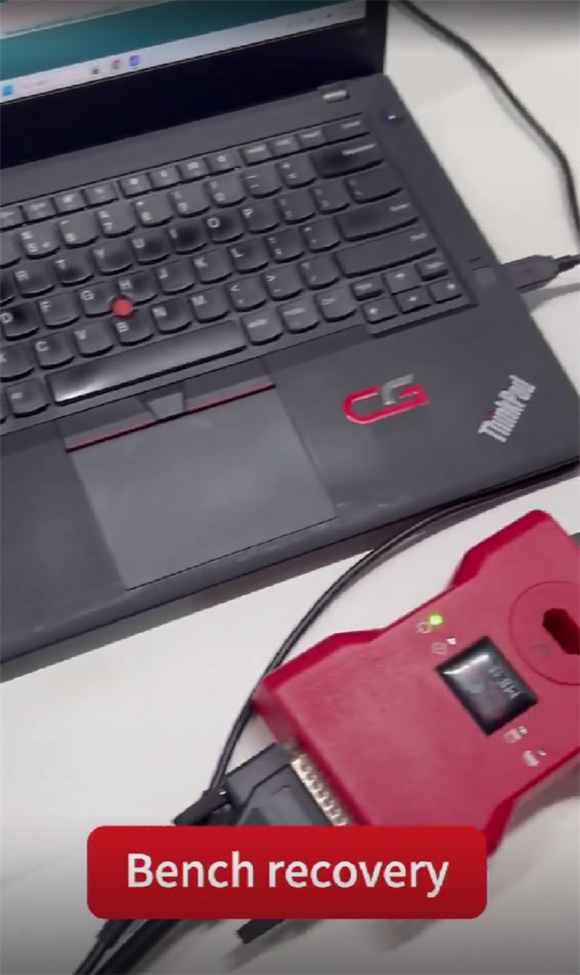
Select “ISM/DSM/ESM”.
Click “Identify” to read the vehicle information, including the VIN and key information.
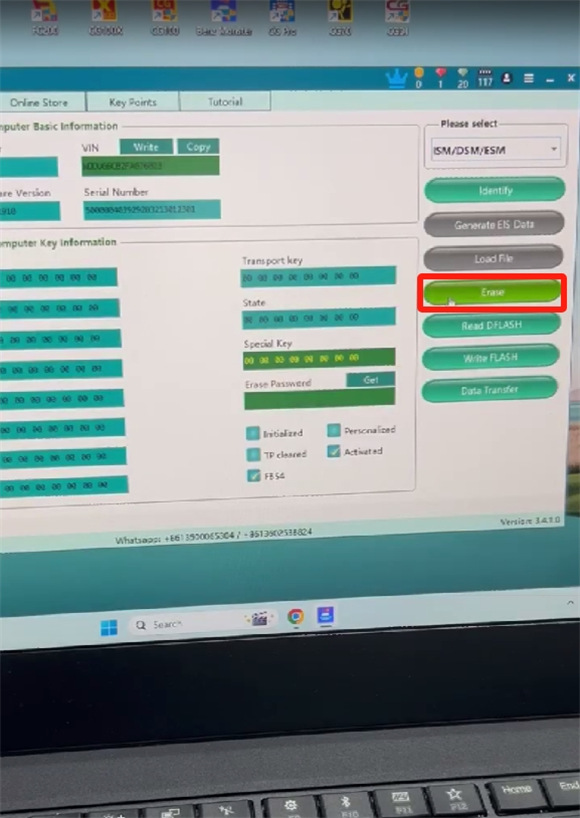
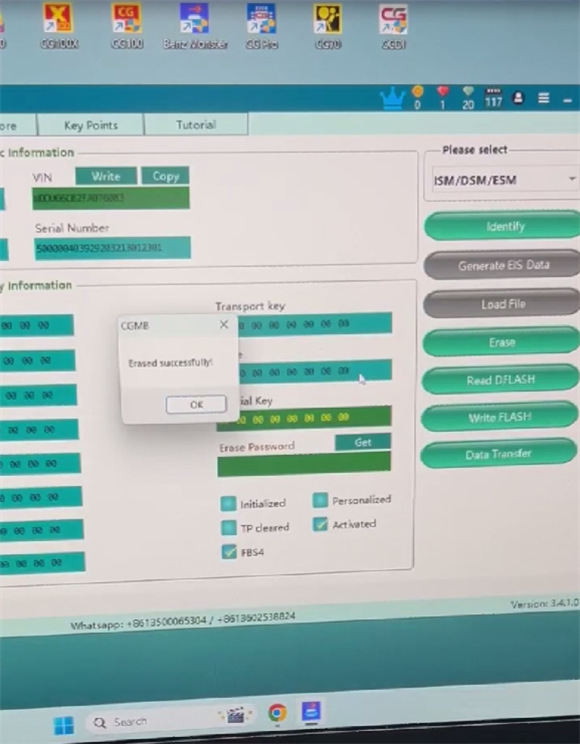
Click “Erase” to start the erasing process.
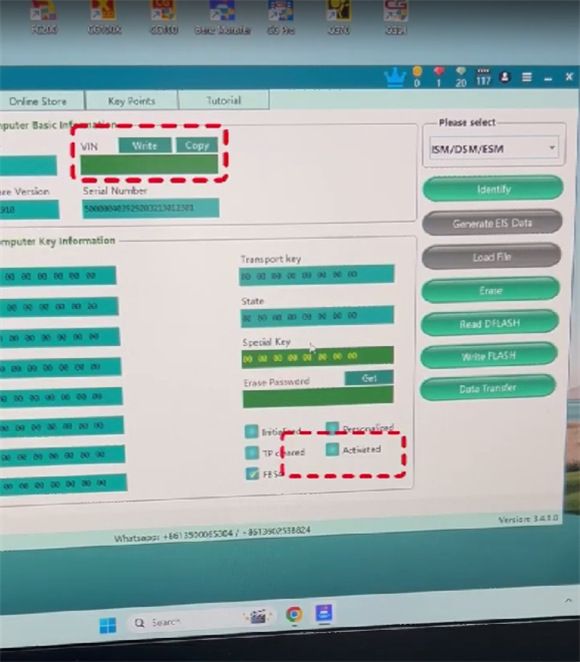
Before erasing, the “Activated” status will be displayed.
After erasing, the “Activated” status will disappear, and the VIN information will no longer be displayed.
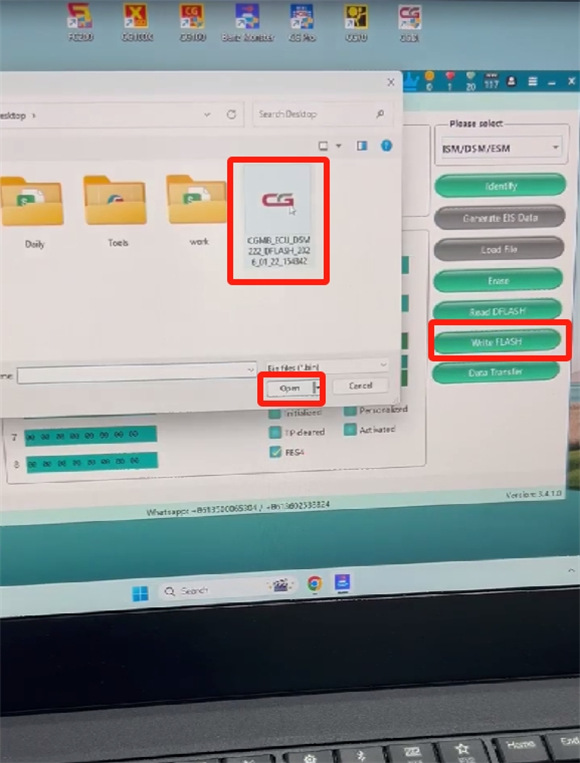
Click “Write FLASH”.
Write the required file to the new DSM.
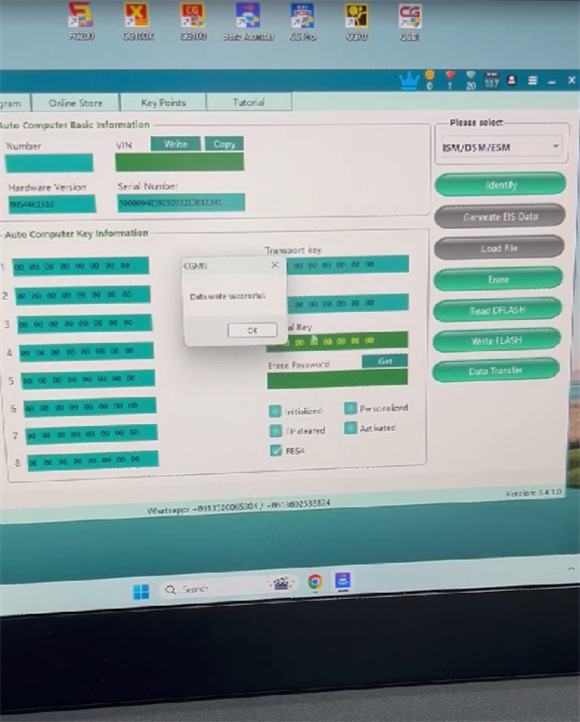
Wait for the writing process to complete.
Once completed, the CGDI MB software will display the VIN information and Activated status again.
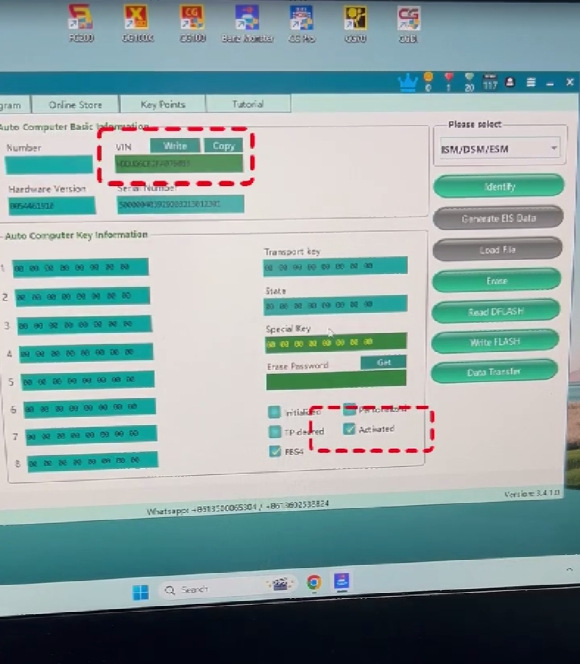
This is the basic procedure for reading, erasing, and writing Mercedes-Benz FBS4 DSM with CGDI Prog MB.